Linux Distros

Monday, May 2, 2022

How to download Ubuntu 22.04 LTS (Jammy Jellyfish)?

Jai Linux

↑ Grab this Headline Animator


How to download Ubuntu 22.04 LTS (Jammy Jellyfish)?


Ubuntu 22.04 LTS (Jammy Jellyfish) is ready to download and rock your Personal Computer or Laptop.
 

To purchase the Ubuntu Operating System Laptops    


               Click here ->  Ubuntu Laptops

        Jammy Jellyfish


The much awaited version of Ubuntu 22.04 LTS is available for download at the following url 


https://releases.ubuntu.com/22.04/


All of you please follow the above link


Wednesday, September 16, 2009

e-Courts Printer HP1020 series HP 1020 Installation guide


Guide on e-Courts Printer HP1020 series  HP 1020 Mobel Linux driver installation


Want to know how to Install the HP 1022 Printer in e-Courts Supplied Laptop i.e Redhat Enterprise Linux 5 

below are the steps to install successfully the printer in your Laptop 


Step 1. 

First login as user 

Step 2. 

Go to System-> Administration -> Security Level and Firewall (Set SELinux to Permissive mode) 

            change the SELinux setting to permissive mode and then Click Ok


Step 3. 

Now put the HPLIP_1022_DRIVER CD into the CDROM (E-Court Linux Printer Driver CD) 


click the "HPLIP_1022_DRIVER" and copy the same folder by right mouse click and pressing copy after come to the Desktop and paste it here. 


Step 4. 

Right Click on HPLIP_1022_Driver & Click Open in Terminal 


Step 5. 

Now you will see Terminal opened here enter the following command chmod 755 hplip_setup.sh (giving execution permissions) 


Step 6. 

 Next issue the following command su -c "./hplip_setup.sh" 7. done total installation Happy printing - Enjoy

Jai Linux

↑ Grab this Headline Animator

Saturday, April 25, 2009

Install TV Tuner Card in LINUX - Intex, Frontech and etc

Here I am going to explain how to install the TV Tuner Card which you purchased locally in your area i.e either Intex or Frontech TV tuner.

This page is usefull to the all Linux Lovers who want to use the TV Tuner in SUSE Linux, Redhat, Ubuntu and etc.,

I explained about how to identify the drivers for the local TV tuner Cards i.e there you have the cards such as Intex, Frontech, Typhoon, Asus, Avermedia, and Pinnacle etc.,

So almost all of the TV tuners are using the same chip inside them i.e Philips SAA713x chip. Also you can say that this article mainly focuses on SAA7130 TV tuner card Installation How To.

***Before doing all this you need to install two applications either bttv or tvtime then only you can see the output

Understanding the TV Tuner card -

Every TV Tuner Card is having two sections

1. Video Decoder
2. The Tuner

When you directly look at the PCI TV Tuner Card you will see the chip Philips SAA7130 Chip
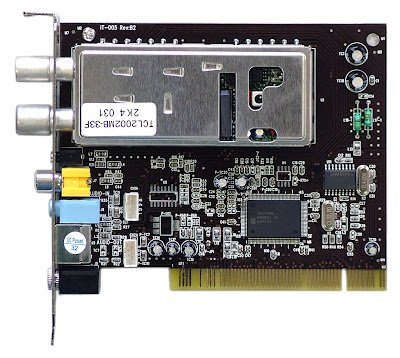
You can also see sometimes i.e manufacturer puts a Sticker on the tuner, so remove that and see what is there on the chip. or you can go for the Windows Driver CD and check the model number.

To determine use the following Linux commands at prompt using sudo or root login

lspci <- Command

dmesg <- Command

when i enter the command lspci you will see the output such as (may different in your system)

00:00.0 Host bridge: Intel Corporation 82845G/GL[Brookdale-G]/GE/PE DRAM Controller/Host-Hub Interface (rev 01)
00:02.0 VGA compatible controller: Intel Corporation 82845G/GL[Brookdale-G]/GE Chipset Integrated Graphics Device (rev 01)
00:1d.0 USB Controller: Intel Corporation 82801DB/DBL/DBM (ICH4/ICH4-L/ICH4-M) USB UHCI Controller #1 (rev 01)
00:1d.1 USB Controller: Intel Corporation 82801DB/DBL/DBM (ICH4/ICH4-L/ICH4-M) USB UHCI Controller #2 (rev 01)
00:1d.2 USB Controller: Intel Corporation 82801DB/DBL/DBM (ICH4/ICH4-L/ICH4-M) USB UHCI Controller #3 (rev 01)
00:1d.7 USB Controller: Intel Corporation 82801DB/DBM (ICH4/ICH4-M) USB2 EHCI Controller (rev 01)
00:1e.0 PCI bridge: Intel Corporation 82801 PCI Bridge (rev 81)
00:1f.0 ISA bridge: Intel Corporation 82801DB/DBL (ICH4/ICH4-L) LPC Interface Bridge (rev 01)
00:1f.1 IDE interface: Intel Corporation 82801DB (ICH4) IDE Controller (rev 01)
00:1f.3 SMBus: Intel Corporation 82801DB/DBL/DBM (ICH4/ICH4-L/ICH4-M) SMBus Controller (rev 01)
00:1f.5 Multimedia audio controller: Intel Corporation 82801DB/DBL/DBM (ICH4/ICH4-L/ICH4-M) AC'97 Audio Controller (rev 01)
01:00.0 Multimedia controller: Philips Semiconductors SAA7130 Video Broadcast Decoder (rev 01)
01:08.0 Ethernet controller: Intel Corporation 82801DB PRO/100 VE (LOM) Ethernet Controller (rev 81)


Also check with the command dmesg for more information


Jai Linux

↑ Grab this Headline Animator


Loadable Kernel Module Saa7134

LKM (Loadable Kernel Modules) for SAA713x chips (SAA7130, SAA7133, SAA7134 etc.,) this module name is saa7134.

Also sometimes we need the dependancy modules like saa7134_alsa, saa7134_dvb, tuner and etc.,

Actually nowadays all of the Latest Linux operating systems have the drivers inside including modules. When you first started the computer with the TV tuner it will load the module into it just you need to verify and configure most of the times.

If you really want to start freshly do the following

rmmod saa7134_alsa saa7134_dvb saa7134

the above command will remove the 3 modules saa7134_alsa, saa7134_dvb, saa7134.

Loading the module is using the following command with the parameters and card, tuner

before using the modprobe command you can also know the information of that module using the command such as

modinfo saa7134

also try -p -d switches

Here i want to concentrate on what to use for the card parameter i.e 3 value is supporting most of the TV Tuner cards.

so you will get good results on using

modprobe saa7134 card=3

In some Linux flavours use the following settings instead of loading the module on every restart of the system

i.e

open the modeprobe.conf file and put the line

modeprobe saa7134

-------------

for the card parameter you can also try the good values i.e percent of getting worked is high is this 3, 10, 21, 42 etc.,

otherwise try the command with all the values and decide where you got the result at last.

for more information what is there in kernel viosit the following link

http://linux.sourcearchive.com/documentation/2.6.27-9.18/saa7134-cards_8c-source.html


new versions of kernels adds more and more cards to this list.


Loading the Tuner

The driver saa7134 is written such a way that each card is associated tuner spec. i.e default tuner for each card no need to override.

You no need to load the tuner once you setup the card correctly.

if at all you need to override the tuner use the following command.

modprobe saa7134 card=3 tuner=37
or
modprobe saa7134 card=3 tuner=55

some times also use the parameter such as gbuffers=4 along with the above command


Once you have done this connect the cable to the tv tuner and scan for channels

by using the command

tvtime-scanner

all the channels will be scanned and stored in the file called stationlist.xml

after this use the command to see the tv

tvtime

you will see the gui windows where you will see the output also you can see the menu to get the scanning channels and settings

Trouble shooting


Many of the times you will not hear the sound from the tvtuner for that check the back side to put the cables at correct position i.e put the tv tuner card audio out to the sound cards line in. the chip saa7130 will not do any audio processing like others.

Also check the sound mixer in the system i.e it is not muted or too low voice .


-------------------------------

In short i will give you small

dmesg
lspci
sudo rmmod saa7134_alsa
sudo rmmod saa7134
sudo modprobe saa7134 card=3

in tvtime i selected the following values

our system- PAL or PAL B/G (Countries like India)

Country - Europe (for compatibility with India as there is no option for this)

to load the tvtime or bttv in Opensuse 11.1 i use the following command

sudo zypper install bttv
sudo zypper install tvtime


Thanks to all and enjoy. Give your valuable suggestion and feedback

Wednesday, March 25, 2009

Change the Network Settings for Internet or Intranet

Really you want to change the Network settings on your own then here is the solution, follow the below instructions.

Whenever you are configuring the network you have to provide following two things

i.e

the first one is IPADDRESS (192.168.1.2) by which the system will recognize it in a network and the second one is the SUBNETMASK (255.255.255.0) which will give you the information i.e how many network devices can be there in the network

To give your desired IPADDRESS then that will be called as STATIC IP, Otherwise the server or network switch in your network will provide the IPADDRESS of its own configured is called as DYNAMIC and i.e with the DHCP server.

OK to specify the static IP, follow the below mentioed steps

Open the terminal and issue the following commands at prompt

#neat

then you will see network setting window, the select the proper network interface i.e "eth0" Ethernet

and click on edit

check the option Statistically set IP addresses and give the values and save the settings.

and reboot the laptop, enjoy now you are done
**************************************************************
I will show you how to connect to the Wireless network or BSNL type 2 modem in coming days


Jai Linux

↑ Grab this Headline Animator

E-Courts Login screen showing "User Judge home directory" is not mounting

When the Laptop boots correctly and you get the Login screen and when you are trying to enter into the

judge

username and password it will show you the error that "user judge home directory"

So, what is the reason for this, hey the problem is with the LUKS passphrase i.e entered incorrectly for 3 consecutive times when the system restarts or boots.

Then what to do with this error!

Here is the solution, you know that it happened due to the LUKS passphrase then reset it.

for that http://jailinux.blogspot.com/2009/02/luks-password-asking-three-times-on-e.html

follow the link

or see below
*******************************
(Linux Unified Key Setup or LUKS is a disk encryption specification)

Reset LUKS passphrase by login as "root" and the password is "redhat"

Once you loged into the "root" user open the terminal and issue the following command

i.e chng_passphrase

then the system will prompt you for the new passphrase. enter the passphrase of your choice or use the default one i.e "courts"

(two times it will ask follow the on screen instructions always)

Now after that just reboot the system and it will prompt you for the LUKS passphrase and enter the correct one which you provided in the previous step.

Excellent you have done, and solved your problem


Jai Linux

↑ Grab this Headline Animator

Saturday, February 21, 2009

LUKS Password asking three times on E-Courts HP Laptop

Jai Linux

↑ Grab this Headline Animator


Linux Unified Key Setup or LUKS is a disk encryption specification

Is your E-Courts Project supplied HP Laptop asking the

LUKS Password for three times then here you get this solution

Just loginto the HP Laptop which installed with the Redhat Enterprise Linux 5 Operating system where the LUKS is enabled.

On the GUI Login screen provide the following information

Username: root
Password: redhat

after loging in successfully click on Accessories and find the Terminal

and issue the following command

chng-> press tab now automatically it will changed to

chng_passphrase

and give the password as : courts
and also for confirmation enter another time, and now restart again the laptop and issue the LUKS passphrase when ever it asks after rebooting.

Refer the following link for more information on LUKS http://code.google.com/p/cryptsetup/

Wednesday, February 18, 2009

Restore the E-Courts HP Latptop to Its original Default

Jai Linux

↑ Grab this Headline Animator

Friends

All of you know that from the E-Courts Project almost Every Judicial Officer got the HP Laptop along with the Redhat Enterprise Linux 5/5.2 DVD and HP CD and Manual one E-Courts DVD

So, What are they

The first one is Operating System for your Laptop

the next one is HP Manual and

the E-Court DVD is the Customization of Operating System special for the E-Courts Project

members i.e Judicial Officer.


When you got the problem with the Laptop you have to do some simple steps i.e

Take that DVD of Redhat Enterprise Linux

Boot from the DVD if not set that option in the BIOS setup (dont concentrate on this point because

default is this option)

When It boots from the DVD it will show the options

in that one for the fresh installation you have to enter

> redhat-install [ENTER] if you want to reinstall the existing or repair already installed skip to next


if you want to repair or restore just issue the following command


> redhat-recover [ENTER]

simply relax and sit back it will ejects the dvd after the completion and reboots

now it will ask for the E-Courts DVD then put that one into the DVD ROM and press enter

if it is saying again and again

just use the following command


Press the ESC button

now it will ask for the username and password

username: root password: redhat

now enter the following command at prompt

> mount /dev/hda /mnt [ENTER]

then use

> cd /mnt [ENTER]

> ./autorun.sh [ENTER]

Now it will copy all the files and configures the operating system i.e customizes
So after that it will reboots the system
and it is ready
the

LUKS passphrase you provided at the boot time is

court

now when the Login screen appears

use the username: judge
and password: court


Now you are in thats it very easy to restore your Laptop.

Saturday, October 25, 2008

Internet speed Bytes/ Kilobytes/ Megabytes explained

Internet speed Bytes/ Kilobytes/ Megabytes explained

Have you wonder that people say that mine is 'x' KBPS line and Iam getting the internet speed very fast. what is that.

Some say that my Internet service provider says that i will get 256kbps line and iam getting only 32kb of speed. They are cheating us, like this people are saying.

Jai Linux

↑ Grab this Headline Animator


Have you thought what is the story behind these one.

When someone is downloading one file he sees that i.e downloading at 8k/s and 16k/s (the values are average) where as the ISP said for the above the speed is 64kbps line, 128kbps.

Whatever he said i.e correct always you have to devide the isp given value with the digit 8 then whatever the value comes i.e your download or speed. i.e the limit will touch this value.

Take for example you have the Internet Connection of 256kbps. (Your ISP may be BSNL, Airtel Broadband, Reliance Wimax, Reliance Broadband, Sify or any other provider). So, whenever you are downloading the file from the website you will see that the total file is downloading at 32k/s.

For this do this calculation i.e

At The time of Download speed X '8'
= The internet coming at this speed for you

32 x 8 = 256


Jai Linux

↑ Grab this Headline Animator


i.e the downloading time you will see the values below the 32k/s i.e it may be 10k/s....20k/s 21k/s...30k/s...32k/s

i.e the maximum value is 32k/s when it is downloading. Some times initital values may be high i.e when the download starts the first buffer is filled so that comes with full speed then automatically shifts to our value. Ok, based on this you have to satisfy. If not you can demand your ISP.

        ------------------------------------------------------------
| Bytes | Kilo-Bytes | Internet Speed |
------------------------------------------------------------
8000 | 64 | 8Kb/s
16000 | 128 | 16kb/s
32000 | 256 | 32kb/s
64000 | 512 | 64kb/s
128000 | 1024 (1Mbps) | 128kb/s
256000 | 2048 (2Mbps) | 256kb/s
--------------------------------------------------------------


Monday, October 20, 2008

Identify the Partition in Linux

Jai Linux

↑ Grab this Headline Animator


Identify the Partition in Linux, find the position where it is located in your hard drive. How much is free and available size.

watchout for these strings in your commands you will observe now onwards

There is a special nomenclature that linux uses to refer to hard drive partitions that must be understood.

/dev/hda /dev/hdb and /dev/sda /dev/sdb and etc.,

Use the following command

`ls -l` while in the /dev dirtectory::
brw-rw----    1 root     disk       3,   0 May  5  1998 hda
brw-rw---- 1 root disk 8, 0 May 5 1998 sda
crw------- 1 root tty 4, 64 May 5 1998 ttyS0
A device file is a file with type c or b

"character" devices, devices that do not use the buffer cache
"block" devices, which go through the buffer cache

In the listing above, this is indicated by the first character of each line.
In Linux, all disks are represented as block devices only.

By convention, IDE drives will be given device names
from /dev/hda
to /dev/hdd.
Hard Drive A(/dev/hda) is the first drive
& Hard Drive C (/dev/hdc) is the third and followes.

drive
name
drive
controller
drive
number
/dev/hda 1 1
/dev/hdb 1 2
/dev/hdc 2 1
/dev/hdd 2 2


A typical PC has two IDE controllers, each of which can have two drives connected to it. For example, /dev/hda is the first drive (master) on the first IDE controller and /dev/hdd is the second (slave) drive on the second controller (the fourth IDE drive in the computer).

SCSI Drives or Pen Drives check out when you are not having scsi controller in your Laptop or System.

drive
name
drive
controller
drive
number
partition
type
partition
number
/dev/sda1 1 6 primary 1
/dev/sda2 1 6 primary 2
/dev/sda3 1 6 primary 3

Logical Partitions these are the drives same as Windows D drive, E drive and etc.,


i.e Primary Master connected Hard Disk with

drive
name
drive
controller
drive
number
partition
type
partition
number
/dev/hdb1 1 2 primary 1
/dev/hdb2 1 2 extended NA
/dev/hdb5 1 2 logical 2
/dev/hdb6 1 2 logical 3

Format Your Pendrive In Linux


Jai Linux

↑ Grab this Headline Animator


Are you new to Linux and want to know how to use your Pendrive in your Laptop or System where installed the operating system of Linux flavour (Redhat, SUSE, UBUNTU, and etc.,)

First know some baics, have you thought about the partitions in Linux i.e like 'C' drive and 'D' drive of Windows. Where are they and how they look like or differ. How to know where is the partition and what is the size of those partitions.

For all these only answer is

fdisk

Type this in your terminal and you will see

Device, Boot, start, end, blocks, Id, System


The device is usually one of the following
click this link to know more about the Hard-disks arrangement in the form of Master, Slave

Primar Master, Seconder Master, Primary Slave, Secondary Slave
/dev/hda, /dev/hdb, /dev/hdc, /dev/hdd and

/dev/sda...........


after knowing this now you want to know what is the name of those partitions in your file system for that use the command

df

Filesystem 1K-blocks Used Available Use% Mounted on

ok enough now come to our Pendrive format

there are two usefull commands one is

to format and second one is to provide the lable to the pendrive the same you can try for other devices.

1. Open X terminal to type the command and enter

$ sudo mkfs.ext3 /dev/sda1

(/dev/sda1 is your USB Pendrive letus assume know this using fdisk, df commands)

Becarefull while entering the partition name i.e /dev/sda1 wrong number will erase the device data may be i.e hard disk so be caution when you use this command and make sure one more time.

2. Now to label the device use the following
$ sudo e2label /dev/sda1 usb-pen


Very very important for you is below one i.e Create an MS-DOS/Windows XP file system under Linux, by entering /dev/sda1 is your pendrive:

$ sudo mkfs.vfat /dev/sda1

why this is important is when you want to use the pendrive in Windows XP system the file system must be compatible to that also i.e vfat file system is compatible with both linux and Windows right now. So always use this one only.


Alright now you are ready to use the pendrive.


This is also helps when you are unable to format the pendrive in Windows. Here in linux you can wipe out and create the new format drive.


Saturday, February 2, 2008

E-Committee , All the Redhat Linux User Media Player Installation

E-Committee Users or Redhat Linux Users.


Jai Linux

↑ Grab this Headline Animator


In the Indian Judiciary, effort for computerization of some of its processes has been going on since 1990. Need was felt to make the programme of ICT enablement of the Indian Judiciary mission-critical. There was an overwhelming realization in the judicial sector in favour of devising a National Policy and Action Plan with appropriate spread and phasing to implement ICT in courts across the country and their web-based interlinking.

The Chief Justice of India made a proposal to the Central Government under the letter dated 05.07.2004 addressed to the Minister of Law and Justice for constitution of an E-Committee to assist him in formulating a National Policy on computerization of Indian Judiciary and advise technological, communication and management related changes. Appreciating the desirability of constitution of such a Committee, the Union Cabinet approved the proposal. Consequently, office order dated 28.12.2004 was issued by the Ministry of Law and Justice (Department of Justice) constituting the E-Committee.

from website: http://www.indianjudiciary.in/ecommittee.html

------------------------------------------------------------------------------------------------------------------------------

For all the Linux users who are loving to use Media player to run the VCD's and Movies, Songs in their Laptops

Just follow the Instructions to install the Xine Media Player, which has great features like playing all the media files and VCD,DVD and etc., even streaming also.

The instructions are given below

Download the Following file

http://files.filefront.com/xinezip/;11561896;/fileinfo.html (copy and paste this link)

or use this link http://rapidshare.com/files/155754394/xine.zip.html to download


xine.zip
or
http://files.filefront.com/xinezip/;9544983;/fileinfo.html

Also keep in mind that Linux is case sensitive i.e 'A' is different from 'a' for example you can have different filenames like this, and all are different

i.e

court, Court, courT, cOurt ..........................................all are different


Before this all doing just login into the system with the username as

username: root
password: redhat

(Note: check the password of your system with the root permission, default for some people is redhat for OEM version of Redhat Linux).

Instructions
-------------------------------------------------------------
1. Copy the 'xine' folder from the cd-rom drive to the Desktop of the laptop

(or)

if you are downloading from above link or URL then locate the xine.zip file and extract the 'xine.zip' to the 'xine' folder to the Desktop.

i) To extract the 'xine.zip' file right mouse click on the file and press 'extract here'

ii) Then you will see the 'xine' folder on the Desktop and the following files in that folder.

libxine1-1.1.5-070315.i686.rpm
xine-ui-0.99.6cvs-071123.i586.rpm
w32codec-0.52-1.i386.rpm

xine-stepbystep.txt for this instructions

You can see the files by double clicking on the xine folder

2. Right Mouse Click on the Desktop and 'Open Terminal'
3. Now terminal opens , so issue the below or following commands
-------------------------------------------

[root@localhost ~]cd Desktop
[root@localhost Desktop]cd xine
[root@localhost xine]ls ----to list the xine directory

[root@localhost xine]rpm -ivh libxine1* xine-ui*
[root@localhost xine]rpm -ivh libdvd*
[root@localhost xine]rpm -ivh w32*

-----------------------------------------------

Successfull installed the xine software in the laptop

Now go to the Applications->Sound&Video->xine

To test the xine player open the file by right mouse clicking on the player and choose the directory 'Desktop'
and choose another directory 'xine' there is the file named chakde.wmv and double click on the file

Now you are seeing the song.

------------------------------------------------


'libxine1-1.1.5-070315.i686.rpm' is used to install the library files for xine player
'xine-ui-0.99.6cvs-071123.i586.rpm' is used to install the Frontend or user interface of the xine player
'libdvdcss-1.2.8-2.network.i386.rpm' is used to install the supporting software for the DVD's
'w32codec-0.52-1.i386.rpm' is used to install the support of Windows video files like avi,mpeg,wmv

for more information or trouble shooting visit the website at http://jailinux.blogspot.com or www.freewebs.com/jithenderreddy

give the trouble shooting questions here in the comments line.....my friends

Wednesday, January 23, 2008

Great Persons Who given great to the Technology

Father of C
Father of Javascript
Father of Java
Father of Perl
Father of C++
and also Father of PHP, Perl, Python,

Inventor of SQL and RDBMS
Inventor of Data flow diagram
Author of Struts, JSF, Tomcat


Click to View full screen


Are you want to be one of them

come on join them and give the better and best

Friday, January 11, 2008

Linux distribution pic

All the Linux distributions and the flavours from which the evaluation has started to some other linux editions.

Technical variations of Linux distributions include support for different hardware devices and systems or software package configurations. Organizational differences may be motivated by historical reasons. Other criteria include security, including how quickly security upgrades are available; ease of package management; and number of packages available.


http://futurist.se/gldt/gldt76.png


Find some other distributions images

http://futurist.se/gldt/#distros

Linux Distributions which are free and non free

The following distributions are completely free:

aLinux, Alpine Linux, ALT Linux, Annvix, Arch Linux, Ark Linux, Arudius, Asianux, Aurox, BLAG Linux and GNU, CentOS, Cross Linux from Scratch, CRUX, Damn Small Linux, Debian, DeLi Linux, DeMuDi, Devil-Linux, dyne:bolic, EnGarde Secure Linux, Fedora, Finnix, Foresight Linux, Fox Linux, Freespire, Frugalware, Gentoo, gNewSense, Gnoppix, gnuLinEx, GoboLinux, Impi Linux, Kanotix, Knoppix, Kurumin Linux, Linux Mint, Lunar Linux, Musix GNU+Linux, Myah OS, NimbleX, NUbuntu, openSUSE, Paipix, Pardus, Parsix, PCLinuxOS, PLD Linux Distribution, Puppy Linux, QiLinux, SabayonLinux, Satux, Scientific Linux, sidux, Slackware, SLAX, Source Mage GNU/Linux, Symphony OS, Trustix, Ubuntu, Ututo GNU/Linux, Vector Linux, Yoper and Zenwalk.


The following distributions are not free :

Elive, Linspire, OES Linux, Pie Box Enterprise Linux, Red Hat Enterprise Linux, Rxart.

How to download Ubuntu 22.04 LTS (Jammy Jellyfish)?

↑ Grab this Headline Animator     How to download Ubuntu 22.04 LTS (Jammy Jellyfish)?   Ubuntu 22.04 LTS (Jammy Jellyfish) is ready to downl...